 AppToPC
 How to Deposit Funds to Download Games & Software
Comprehensive Guide: How to Deposit Funds to Download Games & Software
To ensure a fast and uninterrupted downloading experience, you can fund your account via our automated cryptocurrency payment gateway. Below are the step-by-step instructions:
Step 1: Access the Deposit Menu
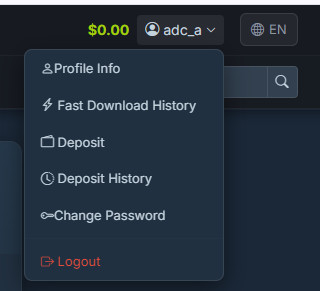
After successfully registering and logging into your account, hover your mouse over your username (the profile icon) in the top right corner of the screen. A dropdown menu will appear; click on Deposit.
Step 2: Select the Deposit Amount
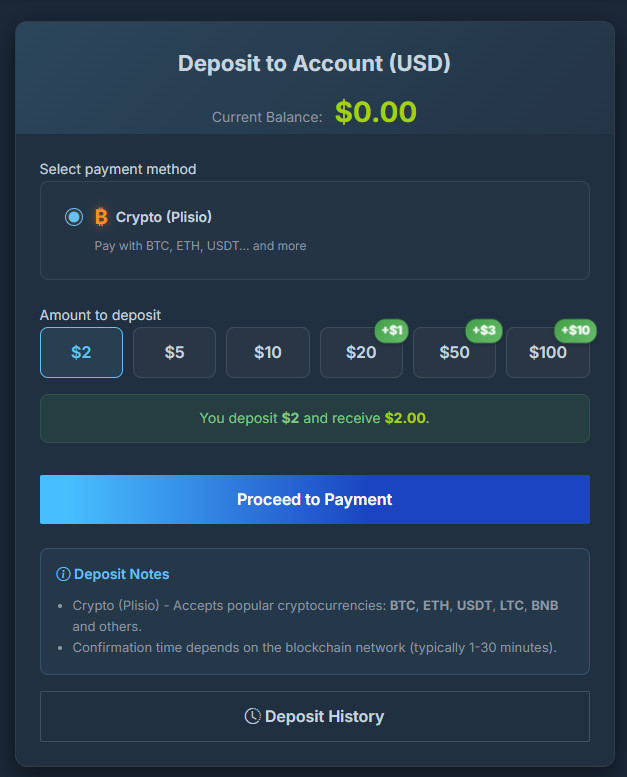
On the Deposit interface, make sure the payment method is set to Crypto (Plisio). Next, click on the amount you wish to deposit (e.g., $2, $5, $10...). Once selected, click the blue Proceed to Payment button to continue.
Step 3: Enter Your Email for Confirmation
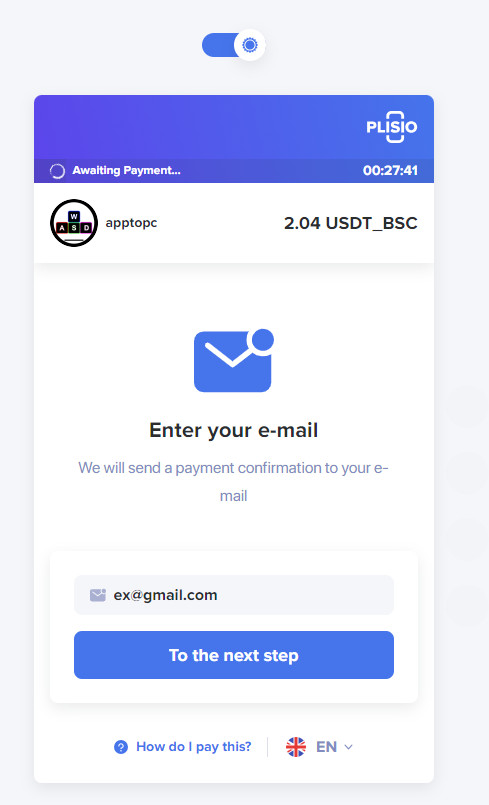
The system will automatically redirect you to Plisio's secure payment gateway. On the Enter your e-mail screen, please type in your correct email address so the system can send you a payment receipt. Once entered, click the To the next step button.
Step 4: Choose Your Cryptocurrency
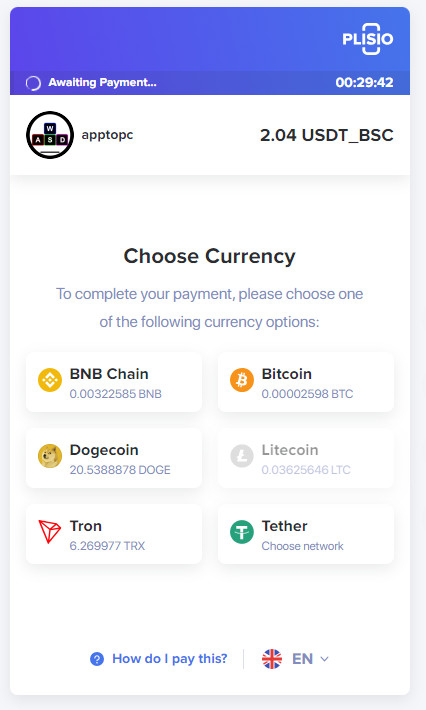
On the Choose Currency screen, you will see a list of supported cryptocurrencies. Select the coin you want to use. In this example, we will select Tether (USDT).
Step 5: Select the Transfer Network (If applicable)
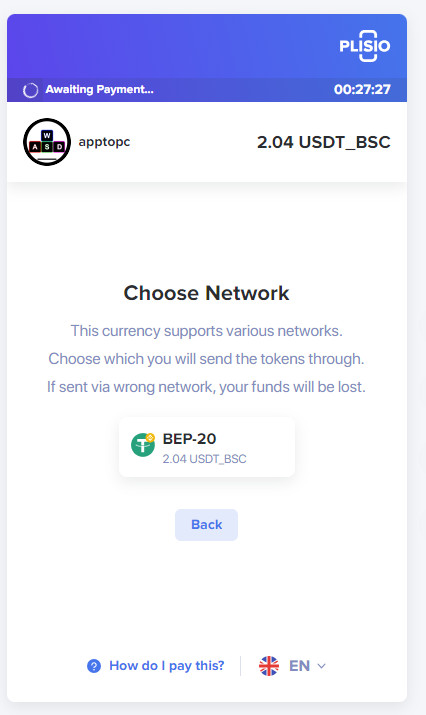
Next, the system may ask you to choose the transaction network (for example, click on BEP-20). Note: For some cryptocurrencies that only support a single network, the system will automatically skip this step and proceed directly to Step 6.
Step 6: Complete the Transfer
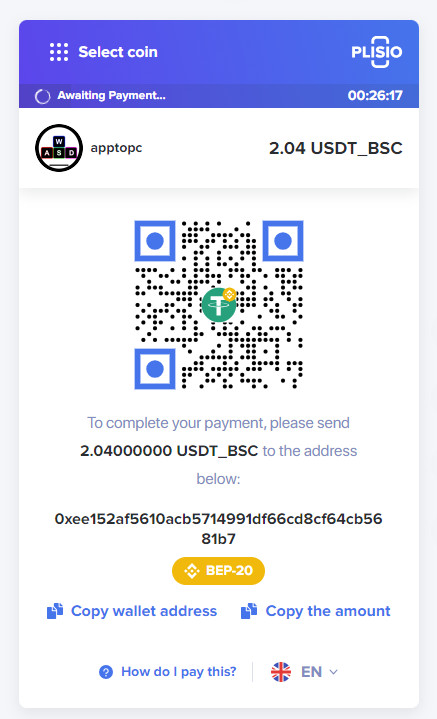
The system will now display a QR code along with the exact wallet address and the specific amount you need to send.
-
You can open your crypto wallet or exchange app on your phone to scan the QR code.
-
Alternatively, use the Copy wallet address and Copy the amount buttons to manually paste the details into your wallet app.
⚠️ CRITICAL WARNING: Before confirming the transfer in your wallet, double-check the Network. If the invoice specifies the BEP-20 network, you MUST select the exact BEP-20 network when sending your funds. Sending funds via the wrong network will result in permanent loss of your money, and it cannot be recovered!
Step 7: Wait for Network Confirmation
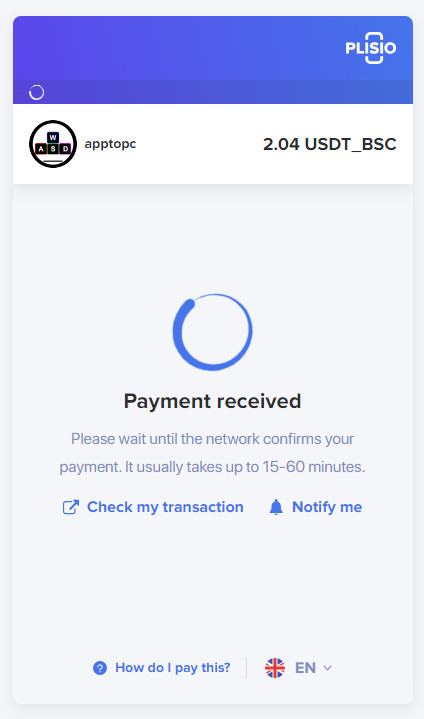
After you have successfully initiated the transfer from your personal wallet, the Plisio payment screen will switch to the Payment received status with a loading circle. Please stay on this page and wait for the blockchain network to confirm your transaction (this usually takes anywhere from a few minutes to 60 minutes, depending on network congestion).
Step 8: Finish and Check Your Balance
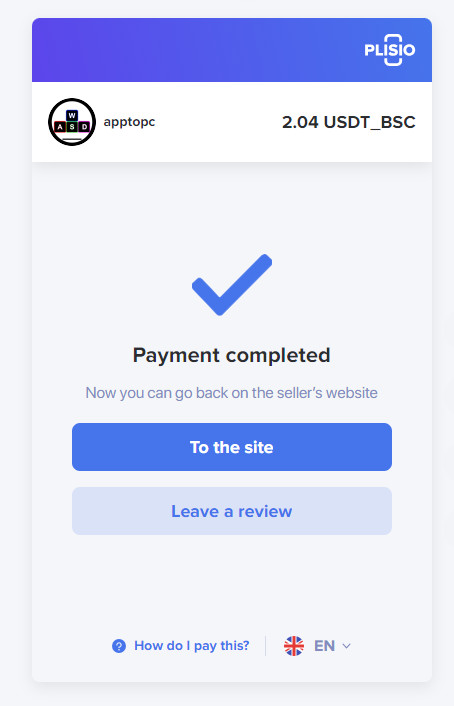
Once the transaction is fully confirmed, the screen will display a large checkmark with the text Payment completed. At this point, you can click the To the site button to return to our website. Your deposited amount will automatically and instantly update in your account balance, and you are ready to start downloading!

