AppToPC
 How To Turn Off Antivirus
Optimize Your PC Further Turning off Windows Security is the essential first step for game and mod installations. Now that your system isn't blocking vital files, it's time to set up the core libraries your games actually need to run. Move on to the next step with our Ultimate PC Gaming Setup Guide to fix annoying .dll crashes and boost your performance!
How to Turn Off Windows Security (Microsoft Defender)
If you need to temporarily disable your system's built-in protection to install a trusted application or troubleshoot an issue, follow these straightforward steps to turn off Windows Security:
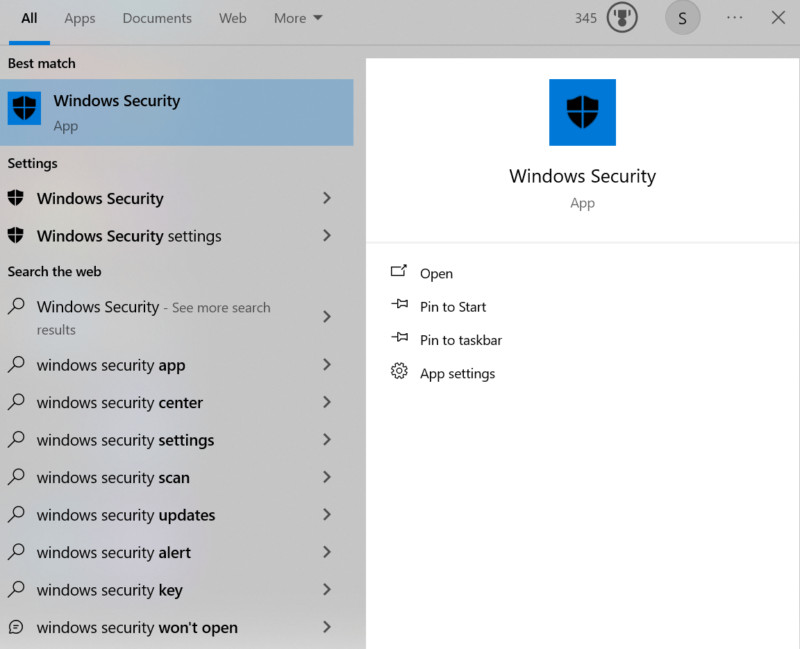
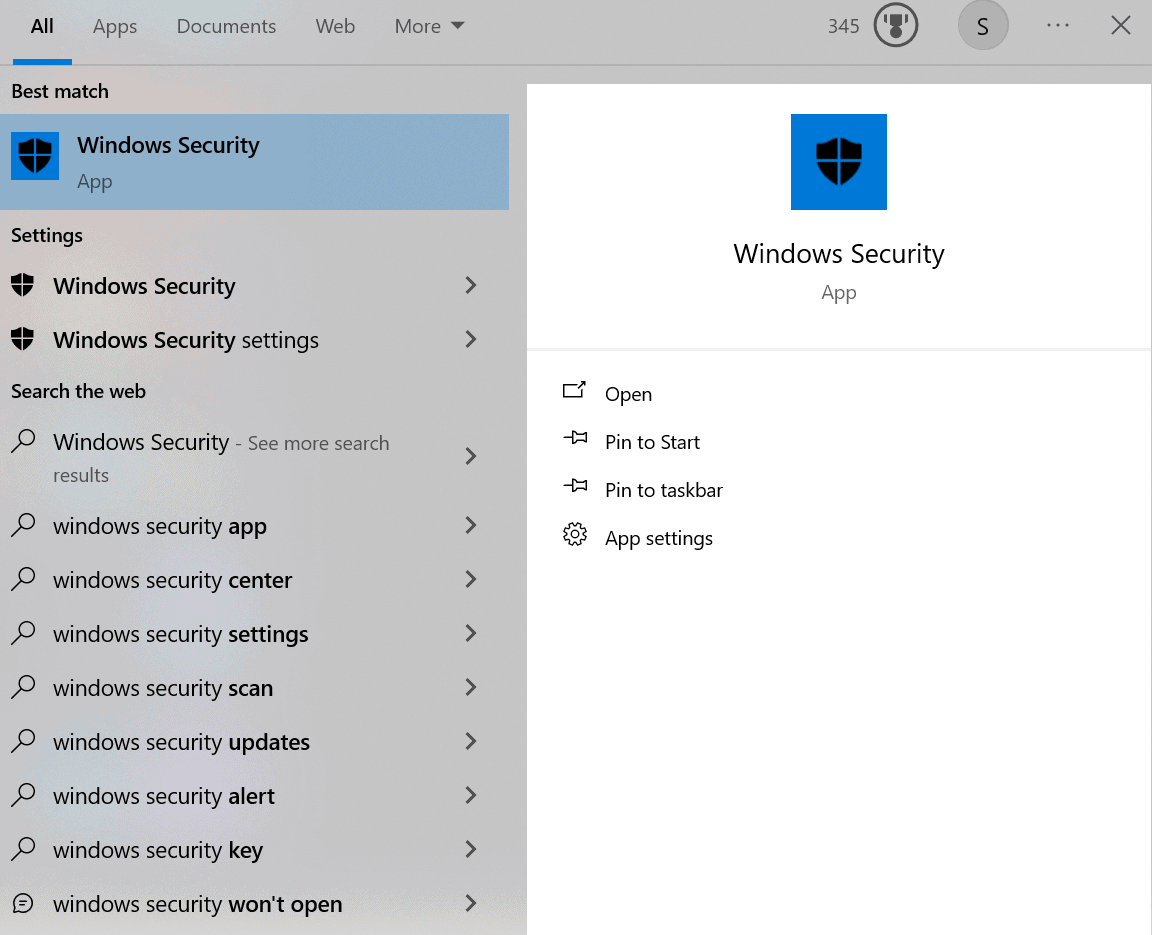
- Open Windows Security: Click your Windows Start menu, type "Windows Security" into the search bar, and launch the app.
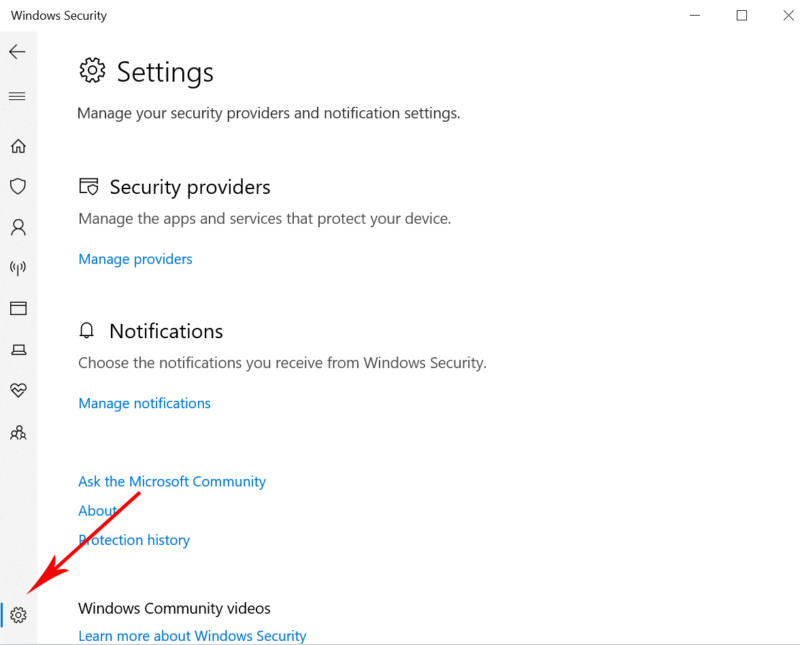
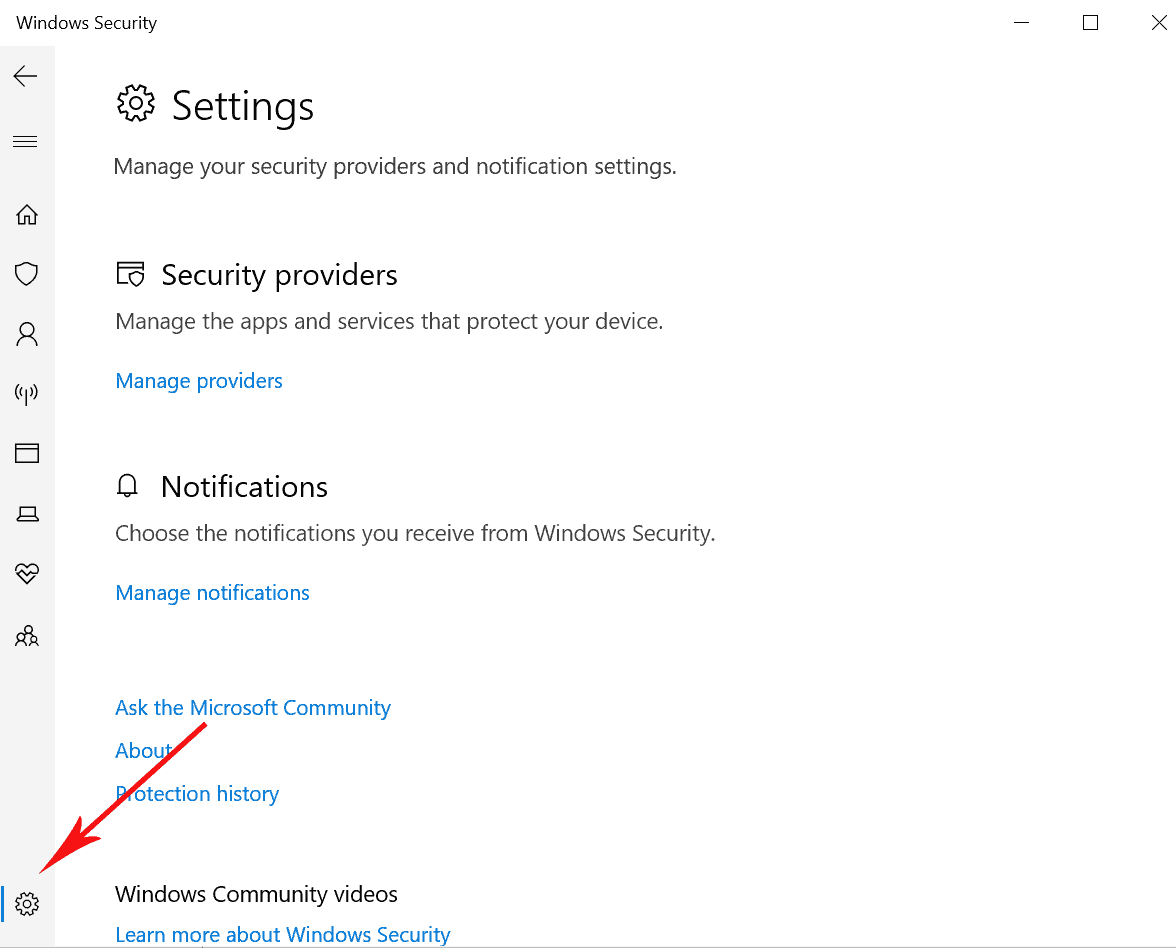
- Navigate to “Settings”
Find the gear icon in the lower-right corner of the Windows Security app and click on it.
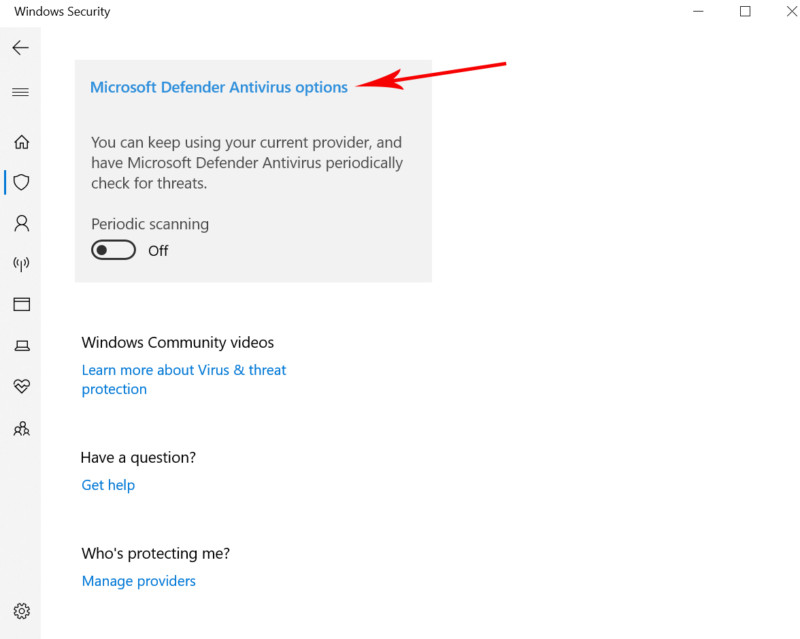
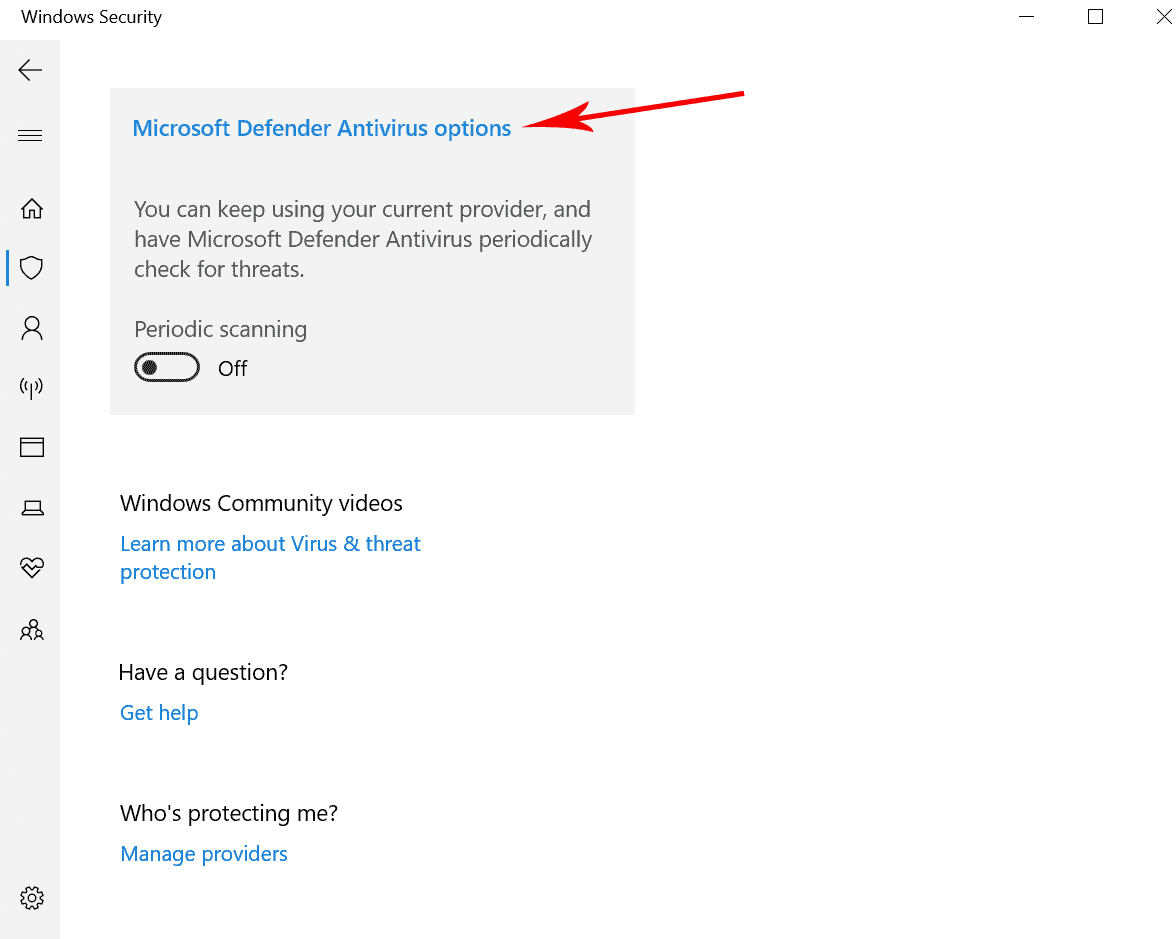
- Turn Off Windows Security
Either switch “real-time protection” to off or go to “options” in Microsoft Defender Antivirus and toggle “periodic scanning” to off.
How to Turn Off Antivirus By Software
The process of turning off antivirus software varies depending on the specific application and operating system. This guide will provide steps for many of the major antivirus providers and operating systems.
Avast
- Go to your Windows taskbar notification area.
- Right click on the Avast logo.
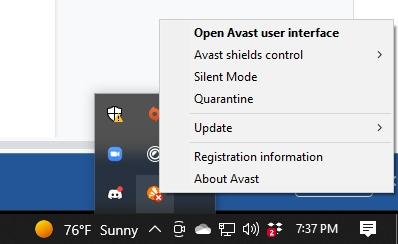
- Hover over Avast shields control.
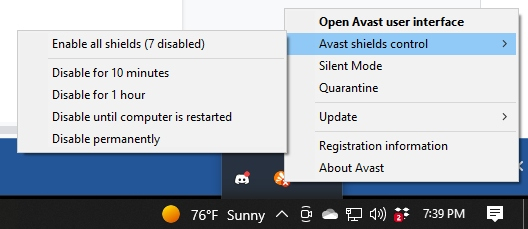
- Choose how long you want to keep Avast antivirus disabled and click OK Stop.
AVG
- Click on the AVG icon.
- Click on Computer Protected.
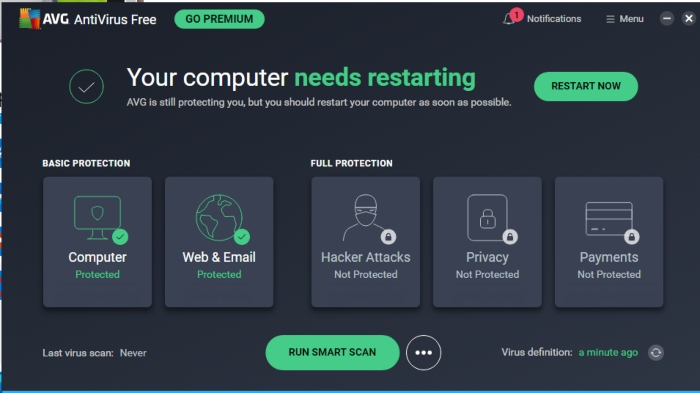
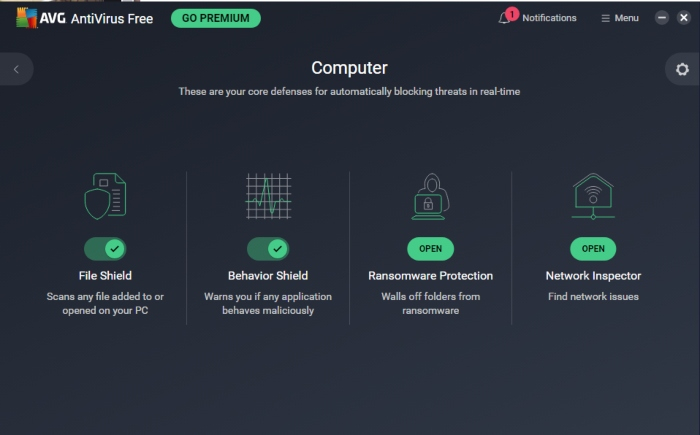
- Toggle off File Shield and Behavior Shield.
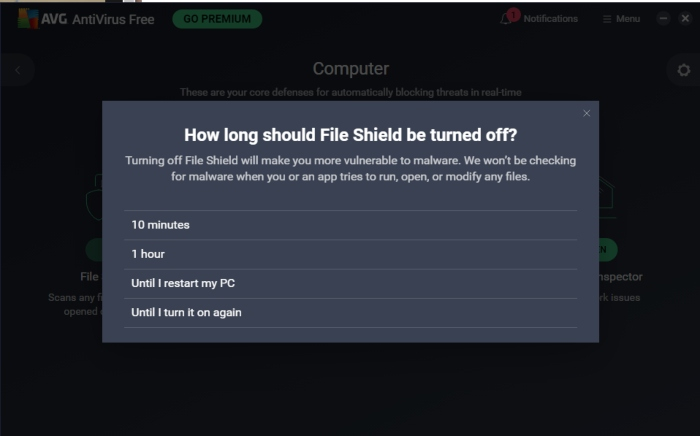
- Click how long you want the shield to be turned off.
Trend Micro
- Right-click the Trend Micro icon in your taskbar notification area and click on Exit.
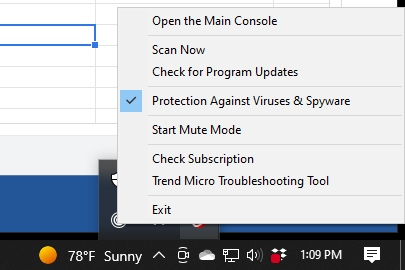
- If you can’t find your antivirus icon, click the arrow in your taskbar next to the notification area.
Bitdefender
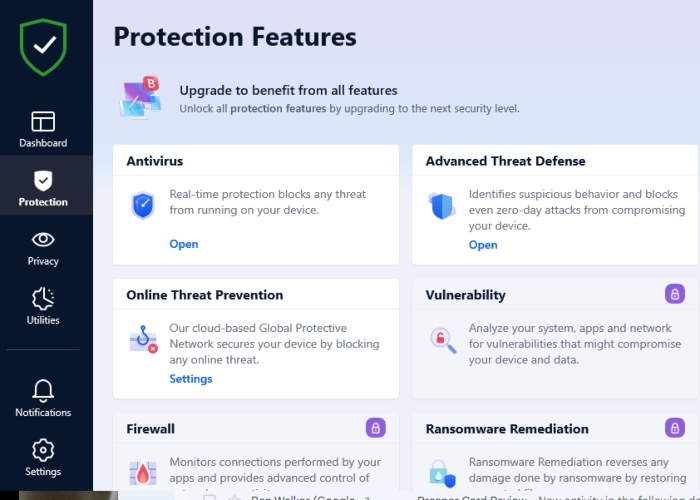
- Launch Bitdefender and go to the Protection section on the left side of the main interface.
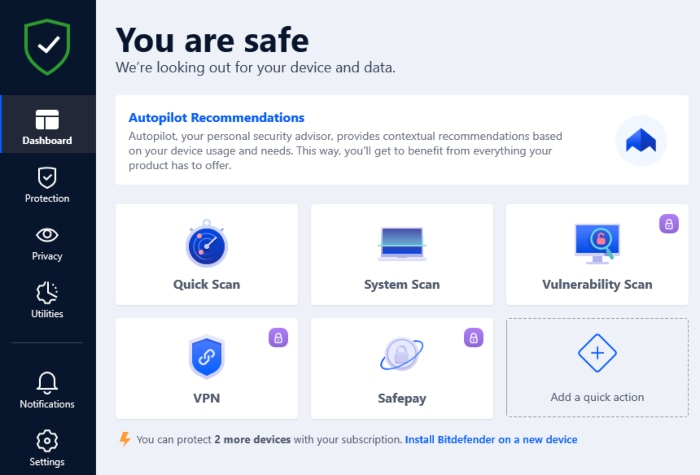
- Click Open under the Antivirus section.
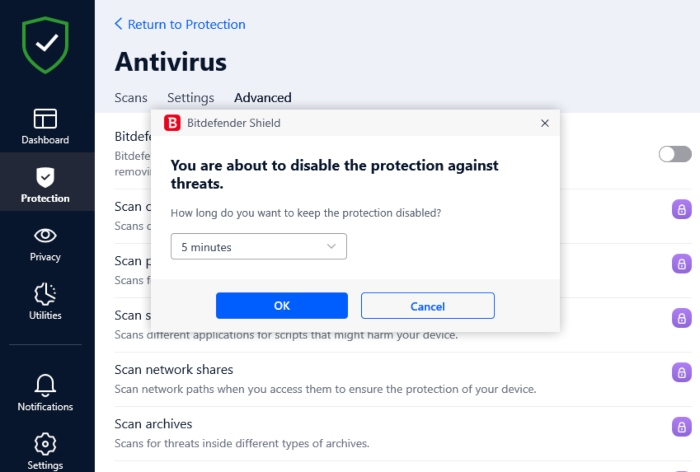
- Go to the Advanced tab and select Bitdefender Shield.
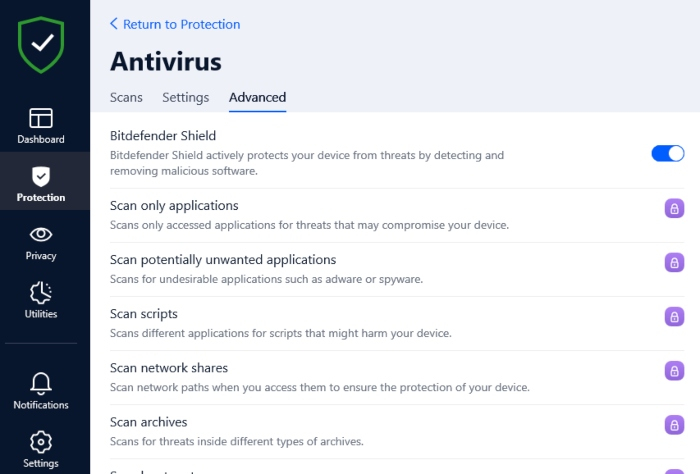
- Choose how long you want to keep the antivirus disabled and click OK.
Malwarebytes
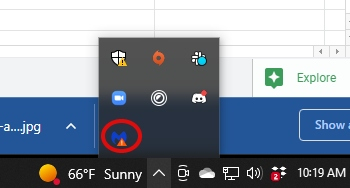
- Right-click on your Malwarebytes icon. It is the “M” icon.
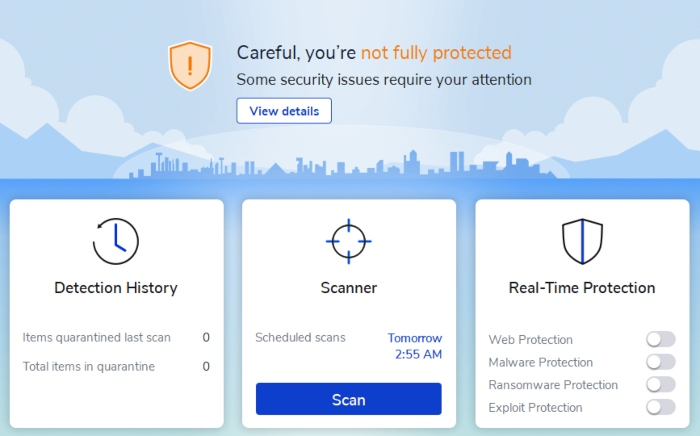
- Uncheck the selections under Real-Time Protection.
- Select Yes when it asks whether you allow Malwarebytes to make changes to your computer.
McAfee
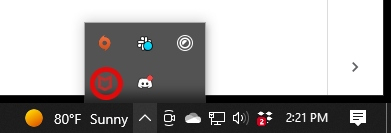
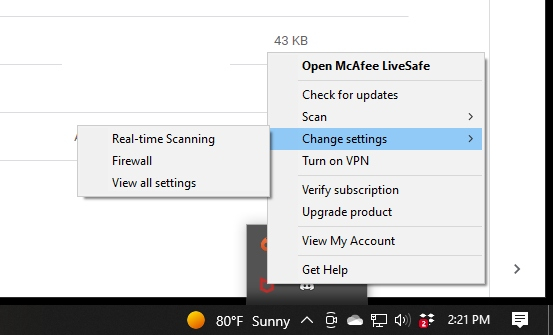
- Right-click the McAfee icon in your taskbar notification area.
-
- Go to Change settings, then Real-time Scanning from your menu.
-
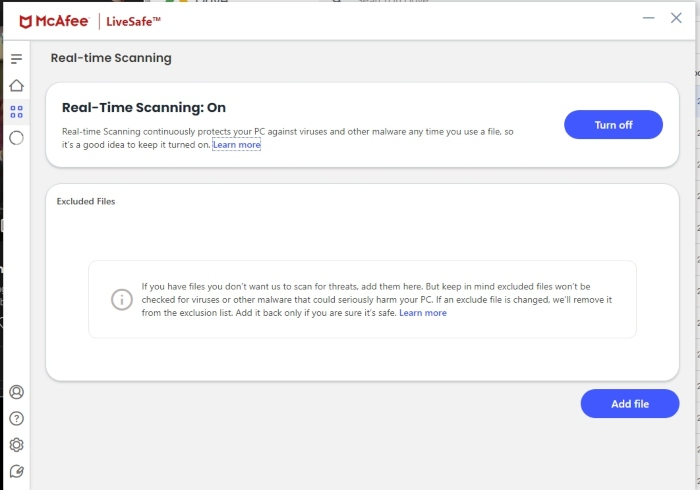
- In the Real-Time Scanning window, click on Turn off.
-
Norton
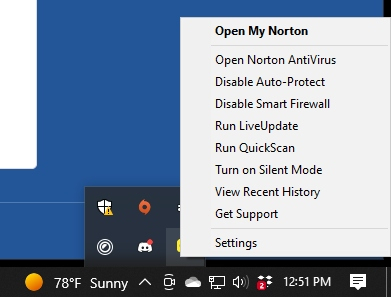
- Right-click the Norton icon in your taskbar notification area and choose Disable Auto-Protect.
-
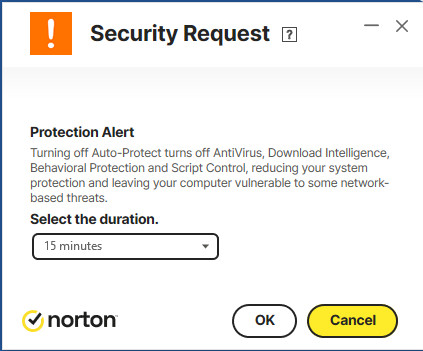
- When the Security Request dialog appears, use the drop-down menu to Select the duration.
- Choose how long you want to disable the antivirus and click OK.
-